Which of us hasn’t ever been stuck trying to share a PDF file online? Whether it’s a file that’s too large, arrives corrupted, or is locked behind a password—you’re likely familiar with the issue. Take a deep breath: we’re sharing easy and reliable methods to generate a link to your PDF that’s clear, fast, and accessible.
Why Turn a PDF into a Clickable Link?
The PDF format was designed for easy sharing. From documents requiring signatures to reports, catalogs, or white papers, we all handle a fair number of them in our inboxes. But without a clickable link, their distribution remains limited, cumbersome, and impractical. We’ve all seen the dreaded "attachment too large" error message! So, let’s explore why converting a PDF into a clean URL boosts efficiency, visibility, and professionalism.
Share Your PDFs More Easily
Attaching a PDF to an email can quickly become a hassle. The file may be several MBs, get blocked in some inboxes, or end up as a forgotten attachment. With a clickable link, you simplify everything: one click opens the page in the browser, without unnecessary downloads cluttering the recipient’s hard drive. You enhance the online experience for your clients, prospects, or colleagues.
Track and Measure Clicks
A click leading to a PDF isn’t just practical—it’s also a performance indicator. You’ll know how many people clicked, when, and from which channel. You can measure the click-through rate (CTR) and the real interest in your documents. This data is invaluable for refining your marketing campaigns and sales materials, for example.
Strengthen Your Professional Image
A long or unreadable address sends the wrong signal. Your contacts may question its security or legitimacy. Conversely, a clean, short, and personalized URL inspires trust. It enhances your brand as much as the document itself. It’s a small detail that makes a big difference: a clear URL reinforces your professional image.
Traditional Methods for Creating a Link to a PDF
There are several ways to turn a PDF document into a clickable link. They’re easy to set up and work well, but you’ll quickly see their limitations: overly long URLs, no tracking, and lack of control. Let’s explore the most common options before learning how to optimize them.
Host Your PDF on a Cloud Service (Google Drive, Dropbox, etc.)
You can save your PDF file on an online storage platform. Using Google Drive, Dropbox, or Adobe Document Cloud, for instance, you generate a public (or private) web address that you can share. It’s practical and fast! However, the links are often long, hard to read, and sometimes subject to restrictions if permissions aren’t set correctly.
Publish Your PDF Directly on Your Website
Another solution: host the file directly on your website. The PDF becomes accessible via a URL like mysite.com/filename.pdf. This is effective, but it requires managing hosting, file size, and potential updates. Plus, you’ll need to anticipate how the page is indexed by search engines—you may not want your file appearing in Google’s search results!
The Limitations of These PDF Sharing Methods
These solutions work for basic sharing, but they quickly reveal their weaknesses:
- The addresses are long, technical, and unappealing.
- You don’t know who clicks or how often.
- Every update to the PDF requires a new address.
The result? You share a document, but without control, data, or a truly professional image.
The Pro Solution: Shorten and Track Your PDF Links
Common methods give you a link—period. But they don’t give you control over what happens next. By complementing these methods with a dedicated tool like URLR.me, you turn a simple link to a hosted PDF into a real marketing asset for your brand.
Turn a PDF into a Short, Elegant Address
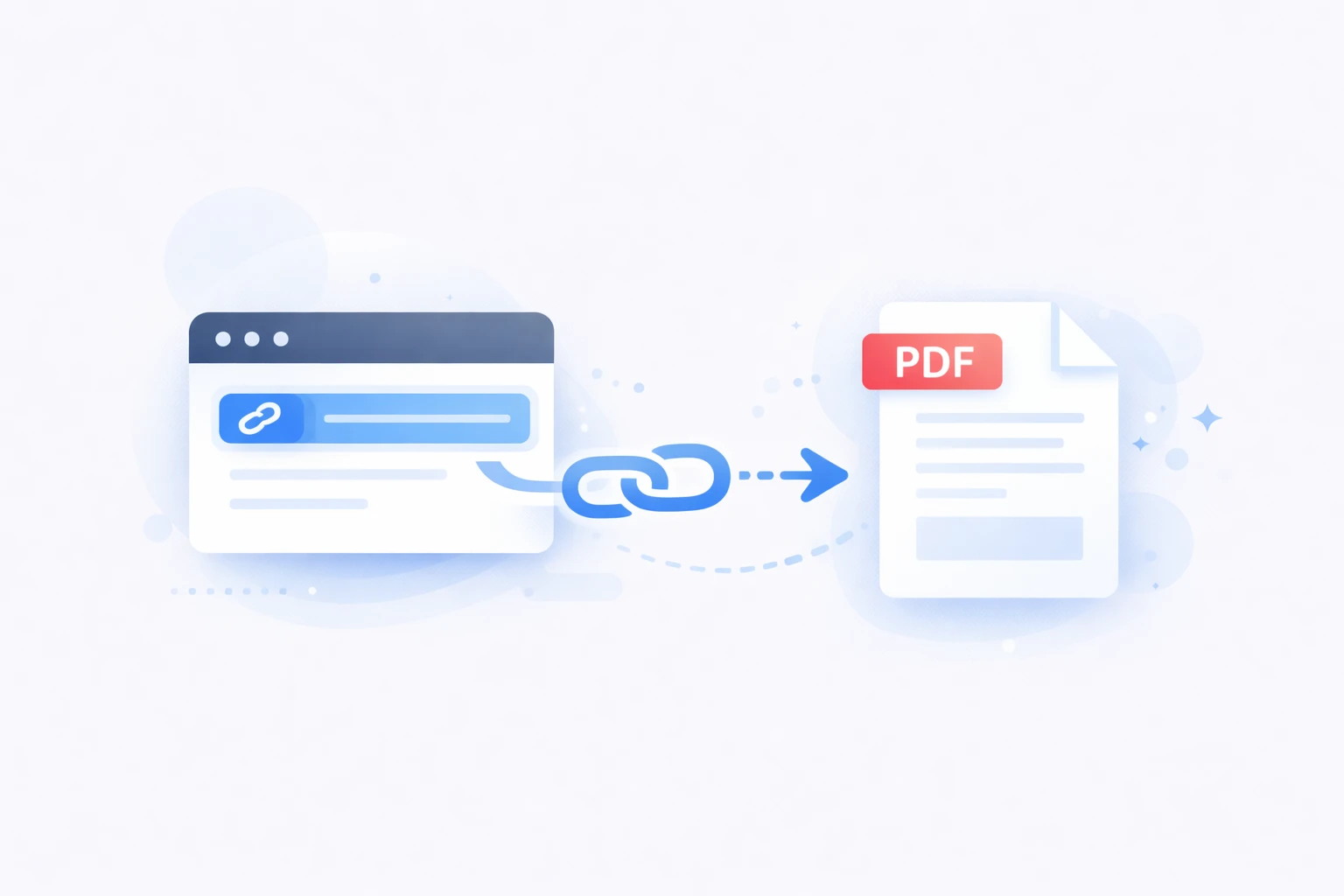
No more endless URLs. With our tool URLR.me, every PDF hosted on a cloud or website is accessible via a short, readable, and easy-to-share web page. You can even customize it to reflect your brand. A small detail? It changes everything: your contacts are more likely to click on a clean, professional URL, and you inspire greater trust.
Track Clicks and PDF Performance
A link isn’t just for opening a file—it’s also a data source. URLR.me lets you track in real time how many people click, when, and from which channel. You’ll find your statistics on a dashboard and can measure CTR, engagement, and real interest in your documents.
Manage Your Shares with Integrated QR Codes
Want to distribute your PDF offline? Generating an associated QR code takes just a second with our tool. It’s the perfect solution for printed brochures, events, or presentations. One address, two uses: click or scan.
Modify the Destination Even After Sharing
Updated your PDF? No need to send a new link. With URLR.me, you keep the same URL and redirect your contacts to the correct file. It’s flexible, practical, and secure.
How Does It Work?
Creating a link to your PDF with URLR.me takes just a few seconds. Here’s how:
- Log in to your URLR.me account from the dashboard.
- Click “Create a short link.”
- Add your PDF’s address (Google Drive, Dropbox, website, etc.) in the provided field.
- Customize the link if you’d like: choose an alias, add a tag, or use a custom domain.
- Tracking is automatically enabled: your clicks will be recorded in your statistics.
- Confirm and copy your short link. You can now share it in an email, a LinkedIn post, or associate it with a QR code.
In just a few clicks, you go from a long, unappealing URL to a short link that’s elegant and trackable.
Share your PDF files hassle-free
Create links to your PDFs effortlessly and avoid errors to ensure quick and secure access to your documents.
Generate my PDF link
Practical Use Cases
Here are three situations where sharing a short address makes all the difference.
Sharing a PDF Brochure in a Newsletter
An email campaign hinges on clicks. Sometimes, a clickable button isn’t the right fit—it doesn’t align with readers’ expectations. In that case, the link becomes the gateway to your PDFs. But if it’s too long or unappealing, you know it reduces your chances of grabbing attention. With a short, clear, and trackable link, you’ll know how many recipients opened your brochure and which content generated the most interest.
Including a PDF White Paper in a LinkedIn Post
On social media, everything moves fast. Adding a messy or generic-looking link discourages clicks and makes your brand seem unprofessional. A short link builds trust, increases engagement, and enhances your resources. Plus, you can measure the impact of your posts in real time.
Adding a PDF to a QR Code for an Event
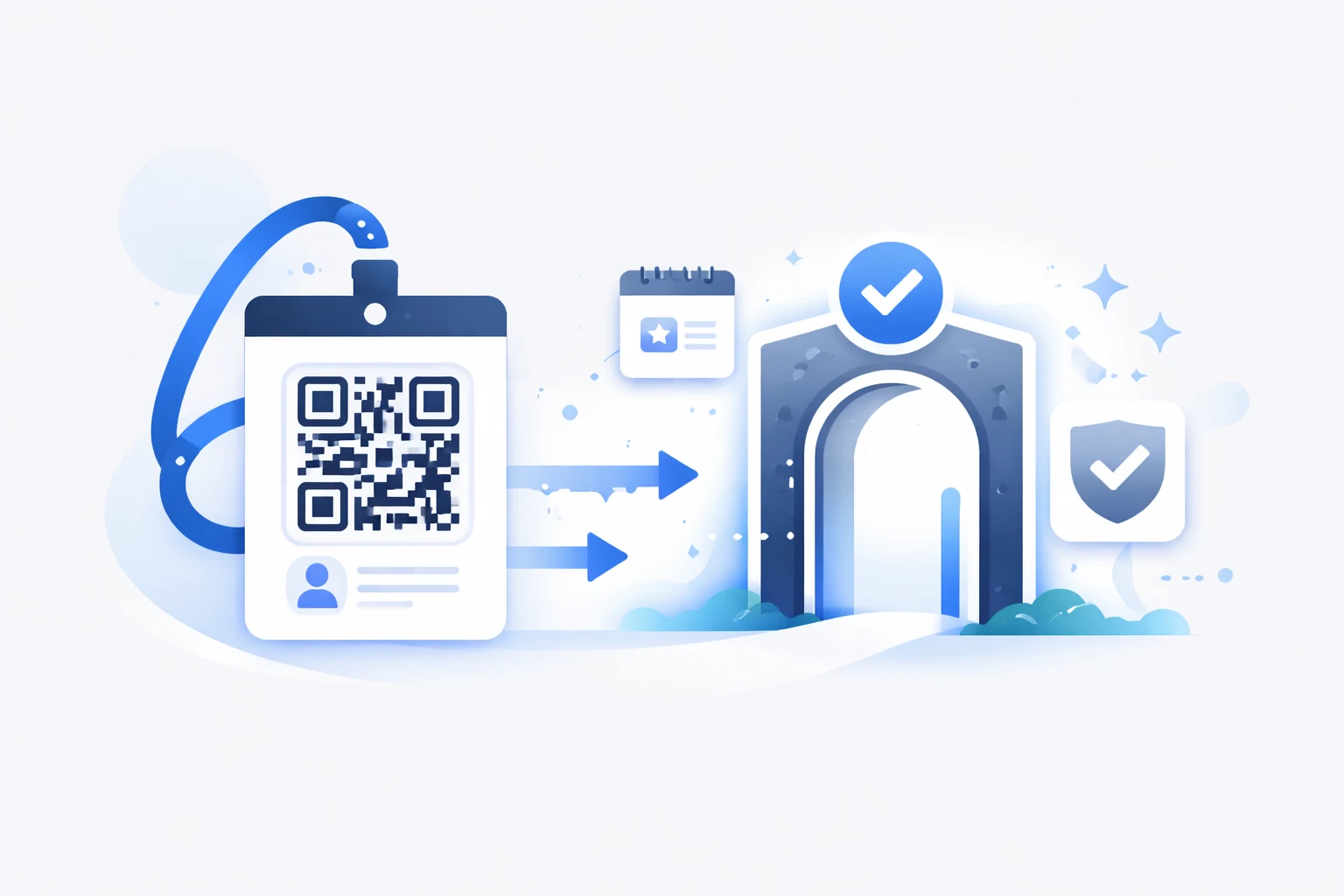
Trade shows, conferences, training sessions—your printed materials or booths deserve better than a stack of flyers. A QR code linked to a PDF provides direct access to your catalogs, presentations, or forms. Visitors scan, access the content, and you keep track of interactions.
Best Practices for Sharing PDFs Effectively
A PDF share can be powerful—or pointless. It all depends on how you prepare and use it. Here are three easy rules we follow at URLR.me to maximize the impact of our distributions.
Check Access Rights
A link should open content, not block it. Too often, a PDF shared from the cloud remains inaccessible due to incorrect settings. Always ensure your PDF is accessible to your intended audience. It’s the foundation of frictionless sharing.
Reduce File Size for Faster Display
A heavy PDF means longer loading times. You know your visitors will close the page if it takes more than 3 seconds. Don’t discourage your readers! Before generating and adding your link to communications, optimize your document. Compress images, simplify the design—a lightweight file opens quickly and improves the user experience. There are online tools for compressing PDFs—don’t skip this step.
Use a Short, Trackable Link to Maximize Results
Sharing a PDF via a raw address works… but you lose all tracking potential. A shortened address offers two advantages:
- It strengthens visual trust and enhances your image.
- It provides data on your clicks.
This turns every share into a strategic source of information for your campaigns.
Answers to Your Most Frequently Asked Questions
Still have questions about creating and sharing links to a PDF? We’ve got you covered.
Can You Create a Link to a Specific Page in a PDF?
Yes, it’s possible to link to a particular page. Some PDF readers like Adobe Acrobat allow you to add a parameter to the URL, such as #page=2. This opens the desired page directly in the browser. However, note that this doesn’t work with all browsers or sharing services.
Can I Track How Many People Clicked on My PDF Content?
Not with a raw address. Traditional services (Google Drive, Dropbox, etc.) don’t provide this data. To measure clicks, CTR, or engagement, you need a link shortening and tracking service like ours. It’s the only way to get reliable statistics on access to your content.
Is It Possible to Replace the File Without Changing the Link?
With traditional hosting, no: a new file means a new address. To keep the same URL while redirecting to an updated document, you need a tool like URLR.me. It’s practical for avoiding sending multiple versions to your contacts.
Key Takeaways (and What to Apply Right Now)
Creating a link to a PDF should never be left to chance, especially when it can be a real asset. You’ve seen the traditional methods, their limitations, and the value of a short, trackable, and professional URL. Remember one simple rule: a link is more than just access—it’s a lever.
Your Quick Checklist
Before sharing your next PDF, make sure to:
- Verify access rights.
- Reduce the file size and optimize images for fast, smooth display.
- Create a short, clear, and trackable link.
- Plan for document updates without losing your URL.
What to Avoid
- Sending large files as attachments.
- Sharing a raw, unreadable, or untrustworthy address.
- Forgetting tracking: you’ll lose valuable data.